So I decided to create this video to try and make a case for the use of Creative Commons by students and attempt to show that it isn't that difficult. I hope you can find a particular time to promote Creative Commons and ask that more and more people post their images for us to share. The more artists that learn about it, the more great art, photography, drawings and graphics will be available for all of us to borrow.
Wednesday, January 6, 2016
Explaining Creative Commons to Anyone
It's been 14 years since the start of the alternate Creative Commons license and there are still so many teachers that are unaware of these licenses. Well, now that we are working in the cloud, there is a more urgent need for a clear promotion of Creative Commons. Sure, I was always the teacher saying I wasn't scared of the copyright police and I'm still not. But I am getting a bit concerned at digital rights management and the ease in which they track down copyright infringement. Lawyers love this automated system. Articles like this one, showing that image marketers are pursuing the money relentlessly makes me much more hesitant to flagrantly post images, but I'm not perfect either.
So I decided to create this video to try and make a case for the use of Creative Commons by students and attempt to show that it isn't that difficult. I hope you can find a particular time to promote Creative Commons and ask that more and more people post their images for us to share. The more artists that learn about it, the more great art, photography, drawings and graphics will be available for all of us to borrow.
So I decided to create this video to try and make a case for the use of Creative Commons by students and attempt to show that it isn't that difficult. I hope you can find a particular time to promote Creative Commons and ask that more and more people post their images for us to share. The more artists that learn about it, the more great art, photography, drawings and graphics will be available for all of us to borrow.

Saturday, September 26, 2015
Google Classroom Got a Calendar
This may be my most awaited feature for Google Classroom. The main reason has to do with parent access. Parents don't have a Classroom account and therefore have no way to be notified of upcoming due dates except by hoping their child tells them. That isn't enough for some families. Now that there is a Google Calendar involved, the calendar can be set to "public" so anyone can view what is being assigned. So much easier for busy families to check their Calendar and see the baseball game along side the social studies map test.
The video below is me doing a trial run through the features. I did find one problem when attempting to add an event directly on the calendar. It does not show within Classroom at all. As an example, if the school is going on a field trip on Wednesday and you as the teacher place it on the calendar rather than make it an assignment in Classroom, students will only see it on their Google Calendars and not within Classroom. This isn't going to break the deal, just needs to be watched by teachers.
The video below is me doing a trial run through the features. I did find one problem when attempting to add an event directly on the calendar. It does not show within Classroom at all. As an example, if the school is going on a field trip on Wednesday and you as the teacher place it on the calendar rather than make it an assignment in Classroom, students will only see it on their Google Calendars and not within Classroom. This isn't going to break the deal, just needs to be watched by teachers.
Monday, August 24, 2015
Question and Answer - Thank you Google Classroom
I am so jazzed today about the latest and really super simple upgrade to Google Classroom, the Question and Answer feature. Not unlike an assignment really, and if you have made an assignment in Google Classroom, you know that is easy. This is even better.
You'll notice instantly something has changed. We've got an add button in the lower right hand corner. This is the new interface we see on most Android apps where to start something new you press a + sign. From there, the options are Announcement, Assignment, Q&A, and Reuse Post. After you pick the Q&A, it is the same box to fill in like the Assignment, with an option to remove the due date if you want. (That option to remove the due date is new within Assignments too.) Type up your question and if you need more materials, like a video, a link to a webpage or anything else, attach it directly to the question.
When you press the Ask button there are 2 check boxes that can give you up to four options. The first check box really creates a discussion board around your question. Students are able to respond to each other. You'll see later that the grading on this is awesome if you are trying to judge participation because you can see all their entries in one place by one student. When you uncheck this box, only the teacher is seeing the answers by the students. Perfect option for when you quickly want to check for understanding. (Imagine those individual white boards only easier to read the writing.) The second box is the second chance. On the student side, they have a button that says, "edit your answer". You offer this for those questions that require a bit more thinking.

You'll notice instantly something has changed. We've got an add button in the lower right hand corner. This is the new interface we see on most Android apps where to start something new you press a + sign. From there, the options are Announcement, Assignment, Q&A, and Reuse Post. After you pick the Q&A, it is the same box to fill in like the Assignment, with an option to remove the due date if you want. (That option to remove the due date is new within Assignments too.) Type up your question and if you need more materials, like a video, a link to a webpage or anything else, attach it directly to the question.
When you press the Ask button there are 2 check boxes that can give you up to four options. The first check box really creates a discussion board around your question. Students are able to respond to each other. You'll see later that the grading on this is awesome if you are trying to judge participation because you can see all their entries in one place by one student. When you uncheck this box, only the teacher is seeing the answers by the students. Perfect option for when you quickly want to check for understanding. (Imagine those individual white boards only easier to read the writing.) The second box is the second chance. On the student side, they have a button that says, "edit your answer". You offer this for those questions that require a bit more thinking.
Students have space to write a long free form answer but can not add any photos or anything but text.
Below is a real short video going over the feature as if you are asking a quick, on the fly, type question.
Friday, August 7, 2015
Google Classroom See Form Completion
I've been using Google Forms for years and loved the ease of gathering not just multiple choice answers, but full written paragraphs. But here comes Google Classroom and it is also awesome for getting student work - including assigning a Google Form. Here is the small problem. I can't tell in Google Classroom which student has finished the Google Form. Here is my workaround.
Create your Google Form as you normally would with all the questions needed. Grab the address for the live form and place it as the link within a Google Classroom Assignment.

Copy the Google Form URL.

Add the URL as a link in a new Google Classroom Assignment.
Now the tricky part comes in. You should click Assign but you will need a few more minutes before students should actually access the assignment. (Really only 1 minute unless you are reading these directions.)
Open the Assignment in Google Classroom. In other words, click on the title of the assignment from the stream. You will see the list of students there and options to email and add grade point value and such. The URL of this page should end in something like BIGSTRINGLETTERS/submissions/1.

Copy the whole Assignment URL.
Now head back to edit the form one last time. Go to the bottom of the form where you can change the text of the confirmation page. Write some instructions to your students about Marking As Done the Google Classroom assignment and give them the link. Here is the example below.

Paste that URL in the body of the text box. It will become a hyperlink when viewed live.
Now the form is ready to fill in and submit. Each student will need to press submit, click the link, and press Mark as Done. Viola - now you know who has completed the form.
Create your Google Form as you normally would with all the questions needed. Grab the address for the live form and place it as the link within a Google Classroom Assignment.

Copy the Google Form URL.

Add the URL as a link in a new Google Classroom Assignment.
Now the tricky part comes in. You should click Assign but you will need a few more minutes before students should actually access the assignment. (Really only 1 minute unless you are reading these directions.)
Open the Assignment in Google Classroom. In other words, click on the title of the assignment from the stream. You will see the list of students there and options to email and add grade point value and such. The URL of this page should end in something like BIGSTRINGLETTERS/submissions/1.
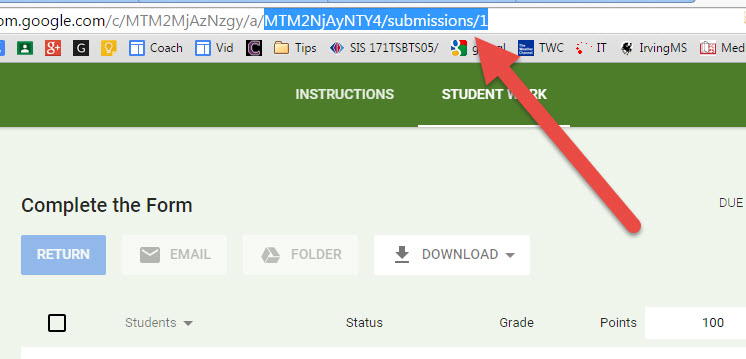
Copy the whole Assignment URL.
Now head back to edit the form one last time. Go to the bottom of the form where you can change the text of the confirmation page. Write some instructions to your students about Marking As Done the Google Classroom assignment and give them the link. Here is the example below.

Paste that URL in the body of the text box. It will become a hyperlink when viewed live.
Now the form is ready to fill in and submit. Each student will need to press submit, click the link, and press Mark as Done. Viola - now you know who has completed the form.
Saturday, July 25, 2015
Must Have Faster than Lighting Tools for Class
A few teachers may not know about these super quick access tools in Google Search (omnibar). So to get you ready to start back, I'll remind you. Then keep them handy for easy to grab ideas. Really easy.
Shall we flip for it? Simply type Flip a Coin as your search term and you'll have a very random coin to flip. Sure, you could pull out a quarter in class but this way everyone in the room sees the results. (no cheating).

Shall we flip for it? Simply type Flip a Coin as your search term and you'll have a very random coin to flip. Sure, you could pull out a quarter in class but this way everyone in the room sees the results. (no cheating).

Best use is to give students choice. "We can complete the questions or play the game first?" If you like to keep them at the edge of their seats, flipping a coin once in awhile is worth the 1 minute.
Search for Timer and you'll have a simple count down timer. Although there are tons of these available, none are as quick to access as the Google timer. Best part is the full screen mode. There is even an alarm sound to indicate when time is up. When students enter class a timer is a good motivator to get them ready for an activity. Use the timer for clean up, for moving to groups, for think time, for just about anything. You can even time the free time - they earn it as class goes on. Just keep increasing (or decreasing as the case may be) the time allotted.
Define a word. This is a google search operator that every student needs to know. Type define: in front of whatever word you want and viola, you will have the definition. It is great fun to have students guess the meaning prior to googling. Use this anytime you want to emphasize content words.
Wednesday, July 22, 2015
Drive and Microsoft Office - Finally a Match!
Today I heard about the Google Drive plug in for Microsoft Office. (I want to thank the Google Guru for pointing this out on his blog) I was anxious to see what new functionality this would bring. As a Tech Coach, I'm always hearing how difficult it is to "switch" between Google and MS Office and I was looking for that perfect match. I think we've got it.
Before I continue, I'd like to point out all the other excellent ways in which these two ecosystems actually do work in tandem. Any Word, Excel or Powerpoint file can be almost accurately converted to a Google file by uploading to Drive and then choosing to "open in Drive." The conversion is getting so good, that most documents look the same and are ready to go or be revised. I know how hard Google has worked to achieve this fidelity and from what I understand about the coding behind it, they have done marvelously well.
The Drive App has always acted just like a file folder and when saving Office files, I can just point to the folder and it will be magically in the cloud.
I have been using for some time the Chrome extension for Office editing. That seemed like the easiest way to quickly make edits in a Word or Powerpoint without the conversion to the Google file type. I never was thrilled with converting because you end up with 2 files in your Drive, one .docx and the other a Google file. So the extension was fine but would only edit text.
Now we have the Google Drive Plug In for Microsoft Office. First I downloaded the .exe file and installed the program. It is an extremely quick and simple install. When finished, nothing appears or gives any direction so I went on and just opened up Word. That is where you'll find the short tutorial from Google that always helps to walk you through and log into your Drive account. Honestly, after that, nothing needs explanation. There is now a Save to Drive menu.

Before I continue, I'd like to point out all the other excellent ways in which these two ecosystems actually do work in tandem. Any Word, Excel or Powerpoint file can be almost accurately converted to a Google file by uploading to Drive and then choosing to "open in Drive." The conversion is getting so good, that most documents look the same and are ready to go or be revised. I know how hard Google has worked to achieve this fidelity and from what I understand about the coding behind it, they have done marvelously well.
The Drive App has always acted just like a file folder and when saving Office files, I can just point to the folder and it will be magically in the cloud.
I have been using for some time the Chrome extension for Office editing. That seemed like the easiest way to quickly make edits in a Word or Powerpoint without the conversion to the Google file type. I never was thrilled with converting because you end up with 2 files in your Drive, one .docx and the other a Google file. So the extension was fine but would only edit text.
Now we have the Google Drive Plug In for Microsoft Office. First I downloaded the .exe file and installed the program. It is an extremely quick and simple install. When finished, nothing appears or gives any direction so I went on and just opened up Word. That is where you'll find the short tutorial from Google that always helps to walk you through and log into your Drive account. Honestly, after that, nothing needs explanation. There is now a Save to Drive menu.

You may see the button Open from Google Drive above. I was thinking this would automatically open any document but in fact, it will only open a .doc or .docx file within Word that you have stored in Drive. If you click on a document that is actually a Google Document, your browser will open and you'll be back in Drive. At that point, you can of course download the document as a Word file. I started to see lists of recent files and those are easy to retrieve straight from the list. Very convenient.
The settings gear offers you a chance to log out of your Google account and switch to another one if needed. For all of us with multiple accounts it's a feature that is highly needed.
Sadly, there is not a Mac download yet. I am hoping this will be soon to follow as I want a seamless world since flash drives do NOT go straight from PC to Mac.
Thursday, May 21, 2015
Tips and Tricks Gallore
I'm a fan of tips and tricks and have lots of subscriptions to get them directly in my mailbox. However, Google has just started a page that actually is a better delivery design. Currently, there are 88 ideas to try but I foresee this tally going up. I could spend the next month or more trying these out. https://get.google.com/intl/en/tips/#!/

Subscribe to:
Posts (Atom)