Sunday, January 24, 2016

Coding in English Class - Perfect Pair

I'm working with a English teacher on a very simple Scratch coding project. If you are not familiar with Scratch, this is a block based programming environment created by MIT years ago. I've loved it ever since it came out because kids of all ages can create amazing things in Scratch. It's funny, but we rarely think of coding and English going hand in hand, yet as I was instructing the students, I was amazed at the similarities I found.

I started by telling them we wouldn't really be "writing" code but that the sequence of the blocks was very important. The "setting" is vital. Every piece of code must be just right, getting the backdrop and characters (known as Sprites in Scratch) in the correct place, defining which direction they face, how fast they will move, etc...  So similar to writing in many ways. You can't start writing and have no direction.

As we began to create our own blocks, I spoke about computer programmers needing their own grammar rules called syntax. That syntax determines whether the next programmer will be able to read the code as well as whether the code will run correctly. Such a wonderful analogy to actual grammar.

Finally, teaching the logic behind conditional statements is the art of writing a great comparative essay or a great reinforcement to so many subjective decisions about literature. The If-Then-Else block requires students to weigh two possible scenarios and never leave anything out. There are so many applications to using that flow chart concept in English class. Here is an example of a Point of View flow chart that could be also coded using the If - Then - Else blocks.

So our project was a very simple overview of a non-fiction book. In the process of teaching them Scratch, I demonstrated the use of conditionals with the If-Then-Else block. The students are asked to create a very simple quiz game. This is a short video showing how easy it is for students to create this quiz game in Scratch. Imagine being the first English teacher in your school to teach coding!



Monday, January 11, 2016

Dear Google - The Next Thing

Dear Google,
I'm writing this letter to let you know what the next big innovation in education should be. Granted, I am just one person, in one school, with some fabulous teachers, but I'm sure what I'm about to say will make sense to some of you that work in the Google offices.

I believe my school is ready to move forward. GAFE has served us well for about 4 years but now my teachers are losing some of the creativity I saw a few years ago. They are weary of the same docs, sheets, slides, and draw. As the tech coach, I get questions in the hall asking what is Google going to give us next. Naturally there is always something, but they are small increments. 

As for the students, I have a true story that happened today: I walked into a classroom that had many groups of students talking amongst themselves and all on computers or chromebooks. I leaned down to ask a students what they were doing. He said they were filling in a chart. Each student had a Google Doc chart distributed to them through Google Classroom and they were filling in the missing pieces and discussing their answers. However one student said, "If this was shared with all of us we'd be done so much faster."  So in other words, our students already understand the power of collaboration and they are adept with it. That is what Google has taught our 7th and 8th grade.

What we need next from Google is something more. That something more is not just the ability to access the world of information and collaborate with it. We need a way to have a conversation with real experts, beyond the walls of the school, yet within a safe environment. I watched the rollout and fizzle of Google Help Outs. It seemed like such a brilliant plan but it was not integrated where it can make the most difference, in schools.  Imagine if Google were to rebrand it as "Help Out Your School." Experts willing to converse with students, stretch their thinking, collaborate on projects and in general give help to those that need it, when they need it. Students trying to code, trying to engineer something, trying to finish a science experiment and so on, all able to post their need and connect with a person who has that expertise and wants to help students. 

This would take the laborious task off the teacher to try to find an expert to schedule a Google Hangout with. It would take the burden off of parents who don't know all the answers and can't find a friend to help. There is no need for it to be commercialized because many careers encourage helping our youth or doing some type of community outreach. 

I'm sure that Google could find a way to make this work, still be safe, and create a learning community unsurpassed. I certainly would be thrilled to see students not just collaborating with each other, but with someone else beyond the four walls. Think about it, Google.

Wednesday, January 6, 2016

Explaining Creative Commons to Anyone

It's been 14 years since the start of the alternate Creative Commons license and there are still so many teachers that are unaware of these licenses. Well, now that we are working in the cloud, there is a more urgent need for a clear promotion of Creative Commons. Sure, I was always the teacher saying I wasn't scared of the copyright police and I'm still not. But I am getting a bit concerned at digital rights management and the ease in which they track down copyright infringement. Lawyers love this automated system.   Articles like this one, showing that image marketers are pursuing the money relentlessly makes me much more hesitant to flagrantly post images, but I'm not perfect either.

So I decided to create this video to try and make a case for the use of Creative Commons by students and attempt to show that it isn't that difficult. I hope you can find a particular time to promote Creative Commons and ask that more and more people post their images for us to share. The more artists that learn about it, the more great art, photography, drawings and graphics will be available for all of us to borrow.


Saturday, September 26, 2015

Google Classroom Got a Calendar

This may be my most awaited feature for Google Classroom. The main reason has to do with parent access. Parents don't have a Classroom account and therefore have no way to be notified of upcoming due dates except by hoping their child tells them. That isn't enough for some families. Now that there is a Google Calendar involved, the calendar can be set to "public" so anyone can view what is being assigned. So much easier for busy families to check their Calendar and see the baseball game along side the social studies map test.

The video below is me doing a trial run through the features. I did find one problem when attempting to add an event directly on the calendar. It does not show within Classroom at all. As an example, if the school is going on a field trip on Wednesday and you as the teacher place it on the calendar rather than make it an assignment in Classroom, students will only see it on their Google Calendars and not within Classroom. This isn't going to break the deal, just needs to be watched by teachers.


Monday, August 24, 2015

Question and Answer - Thank you Google Classroom

I am so jazzed today about the latest and really super simple upgrade to Google Classroom, the Question and Answer feature. Not unlike an assignment really, and if you have made an assignment in Google Classroom, you know that is easy. This is even better.

You'll notice instantly something has changed. We've got an add button in the lower right hand corner. This is the new interface we see on most Android apps where to start something new you press a + sign. From there, the options are Announcement, Assignment, Q&A, and Reuse Post. After you pick the Q&A, it is the same box to fill in like the Assignment, with an option to remove the due date if you want. (That option to remove the due date is new within Assignments too.) Type up your question and if you need more materials, like a video, a link to a webpage or anything else, attach it directly to the question.

When you press the Ask button there are 2 check boxes that can give you up to four options. The first check box really creates a discussion board around your question. Students are able to respond to each other. You'll see later that the grading on this is awesome if you are trying to judge participation because you can see all their entries in one place by one student. When you uncheck this box, only the teacher is seeing the answers by the students. Perfect option for when you quickly want to check for understanding. (Imagine those individual white boards only easier to read the writing.) The second box is the second chance. On the student side, they have a button that says, "edit your answer". You offer this for those questions that require a bit more thinking.


Students have space to write a long free form answer but can not add any photos or anything but text. 

Below is a real short video going over the feature as if you are asking a quick, on the fly, type question. 


Friday, August 7, 2015

Google Classroom See Form Completion

I've been using Google Forms for years and loved the ease of gathering not just multiple choice answers, but full written paragraphs. But here comes Google Classroom and it is also awesome for getting student work - including assigning a Google Form. Here is the small problem. I can't tell in Google Classroom which student has finished the Google Form. Here is my workaround.

Create your Google Form as you normally would with all the questions needed. Grab the address for the live form and place it as the link within a Google Classroom Assignment.


Copy the Google Form URL.


Add the URL as a link in a new Google Classroom Assignment. 


Now the tricky part comes in. You should click Assign but you will need a few more minutes before students should actually access the assignment. (Really only 1 minute unless you are reading these directions.)

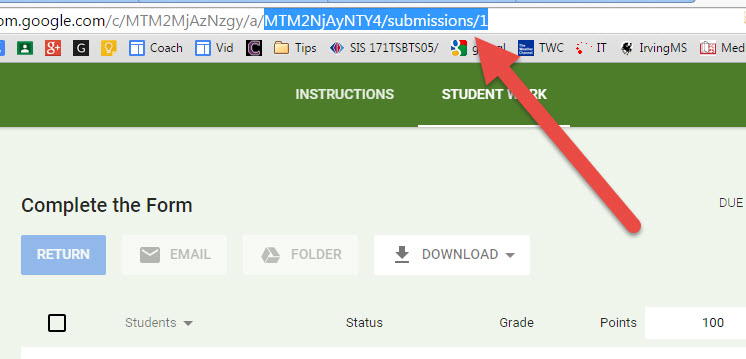
Open the Assignment in Google Classroom. In other words, click on the title of the assignment from the stream.  You will see the list of students there and options to email and add grade point value and such. The URL of this page should end in something like  BIGSTRINGLETTERS/submissions/1.  


Copy the whole Assignment URL.


Now head back to edit the form one last time. Go to the bottom of the form where you can change the text of the confirmation page. Write some instructions to your students about Marking As Done the Google Classroom assignment and give them the link. Here is the example below.

Paste that URL in the body of the text box. It will become a hyperlink when viewed live. 


Now the form is ready to fill in and submit. Each student will need to press submit, click the link, and press Mark as Done. Viola - now you know who has completed the form.

Saturday, July 25, 2015

Must Have Faster than Lighting Tools for Class

A few teachers may not know about these super quick access tools in Google Search (omnibar). So to get you ready to start back, I'll remind you. Then keep them handy for easy to grab ideas. Really easy.

Shall we flip for it?  Simply type Flip a Coin as your search term and you'll have a very random coin to flip. Sure, you could pull out a quarter in class but this way everyone in the room sees the results. (no cheating).


Best use is to give students choice. "We can complete the questions or play the game first?" If you like to keep them at the edge of their seats, flipping a coin once in awhile is worth the 1 minute.

Search for Timer and you'll have a simple count down timer. Although there are tons of these available, none are as quick to access as the Google timer. Best part is the full screen mode. There is even an alarm sound to indicate when time is up. When students enter class a timer is a good motivator to get them ready for an activity. Use the timer for clean up, for moving to groups, for think time, for just about anything. You can even time the free time - they earn it as class goes on. Just keep increasing (or decreasing as the case may be) the time allotted.

Define a word. This is a google search operator that every student needs to know. Type define: in front of whatever word you want and viola, you will have the definition. It is great fun to have students guess the meaning prior to googling. Use this anytime you want to emphasize content words.